LAB 5: Lists, Determinate Loops, Command Line Interaction
Learning Outcomes
In this lab, you will:
- learn about using lists to collect relevant data,
- use for loops to iterate through lists,
- use indexes to select elements of lists and other iterables,
- implement command line arguments in your scripts,
- use
help()to discover useful methods, - discover string functions to handle newline characters.
Introduction
In this lab we will introduce a new datatype, which contains many other pieces of data. Lists are the first type of iterable that we will discuss. Typically we use a new type of loop to iterate through lists: the for loop. This is a different type of loop, since we know beforehand how many times we will need to iterate. As you will see, using lists and loops allows us to work with a dynamic set of data.
5.1 Lists
Lists are a new datatype. In short, a list can contain a collection of things, under one variable name. A list can contain any combination of integers, floats, strings and even other lists.
my_list = []  # square brackets indicate that this is a list

my_list2 = [3, 3.14, [0, 1], 'potato']  # this list contains a combination of datatypes
Lists are particularly important when dealing with a collection of data, and we don't know how long the list is going to be. Consider our last example using the while loop:
sum = 0
print("SUMMING CALCULATOR")
while True:
    user_input = input("Enter a number to add to your sum. Pressing Enter will exit. ")
    if user_input == "":
        break
    else:
        sum += int(user_input)
print("Thank you for using summing calculator. The final sum was " + str(sum) + ".")
In this example, we only have sum, and we are re-calculating this every time we iterate the loop. The variable user_input is being overwritten each time we run the loop, so the actual user input is lost to us. However, by using a list with its built-in functions append() and sum(), we will be able to save each integer as a separate element.
user_numbers = []
print("SUMMING CALCULATOR")
while True:
    user_input = input("Enter a number to add to your sum. Pressing Enter will exit. ")
    if user_input == "":
        break
    else:
        user_numbers.append(int(user_input))
print(user_numbers)
print("Thank you for using summing calculator. The final sum was " + str(sum(user_numbers)) + ".")
Enter this code into VSCode and save the file as lab5a.py. Run the code.
- Append means to add to the end. Each new item in our list will be added to the end. Lists keep track of order, which will become more important later on.
- Sum does exactly what you think it does, it sums every number in a list! There are many more built-in functions as will see.
Let's assume now that instead of summing, we need to return an average. This means we will need the sum of the numbers, but also the number of numbers. We could accomplish this using a counter inside our while loop, but let's instead use the built-in function len().
if __name__ == "__main__":
    user_numbers = []
    print("AVERAGE CALCULATOR")
    while True:
        user_input = input("Enter a number to add to your sum. Pressing Enter will exit. ")
        if user_input == "":
            break
        else:
            user_numbers.append(int(user_input))
    num_sum = sum(user_numbers)
    num_length = len(user_numbers)
    average = num_sum / num_length
    print(f"Total sum is: {num_sum}. Total count is: {num_length}. Average for this list is: {average}.")
    print("Thank you for using average calculator.")
Save this file as lab5a.py once again.
On that second-to-last line, the f"" is important. This is a new Python tool called f-strings. It is slightly easier way of printing variables as it doesn't need type coversion or + signs.
While f-strings are far easier to work with, we started off using the old way of printing because it was necessary to introduce the concept of datatype conversion. In the future, use whatever you like.
So lists have useful tools already built-in, but we have not yet covered ways of working with the individual elements of a list. We will cover two approaches now.
5.2 For Loops
While loops are useful when we don't know, at run-time, how many times we are going to need to iterate. There exists another type of loop which is commonly used when we do know beforehand how many times we be iterating. This is called definite iteration, as opposed to indefinite iteration. The for loop is very often used with lists, for example.
animals = ['cat', 'tiger', 'gorilla', 'capybara']

for animal in animals:
    print(f"{animal} will make an excellent pet.")
Run this code and you will see:
cat will make an excellent pet.
tiger will make an excellent pet.
gorilla will make an excellent pet.
capybara will make an excellent pet.
When we start the program, Python 'knows' that there are four items in the animals list, and that the for loop will run four times.
There is a special variable called animal that contains the value of successive element in the list. You can think of it as an arrow pointing to wherever we are in the list:
| CAT | TIGER | GORILLA | CAPYBARA |
|---|---|---|---|
^ animal |
The next time we run through the loop, animal moves to the next item:
| CAT | TIGER | GORILLA | CAPYBARA |
|---|---|---|---|
^ animal |
...and so on.
animals, by the way, is called an iterable because we are able to iterate through it. Strings are also an iterable:
animal = 'gorilla'

for letter in animal:
    print(f"GIVE ME A {letter.upper()}!")
print(f"WHAT'S THAT SPELL? {animal.upper()}!!")
5.3 TASK: Summing a List Without a Builtin Function
- Open your
lab5a.pyfile. - Replace the
sum()function call withmy_sum(). - You will need to create this function. It should take a list as a parameter, and return an integer.
- Use a for loop to do this!
- Make sure that the function definition is at the top of your script, and not in main.
5.4 Using Range for Looping
There are a few built-in functions that can create iterables for looping. You may need to generate a sequence of numbers. To do this, you can use range(). This works similar to random.randint, in that the sequence of numbers starts at the first value and ends just before the last value:
>>>> for i in range(1, 5):
>>>>     print(i)
1
2
3
4
Notice that the last value to be printed is not 5, but the value before it. You can also include another argument which will define the step for your range. In other words, are we incrementing by one, or by another value?
>>>> for i in range(1, 5, 2):  # start at 1, add 2 to each increment.
>>>>     print(i)
1
3
5.3 Indexes and Slicing
We have seen that you can iterate through a list using a for loop. The loop variable will first equal the first element, then the second element, and so on until it reaches the last element.
We can also access these values directly by specifying the index.
animals = ['cat', 'tiger', 'gorilla', 'capybara']

first_element = animal[0]
print(f"{first_element} comes before all others.")
cat comes before all others.
Indexes start at 0, meaning the value of first_element is "cat". Enter this code into VSCode or your interpreter, and change the index.
With negative numbers, you can work from "right-to-left", or from the last element to the first. This is useful when you don't know how many elements you can expect beforehand.
last_element = animal[-1]
print(last_element)
capybara
Finally, you can perform slices by specifying two numbers separated by a :. We can create a new list which is a subset of our original.
middle_boys = animals[1:-1]
['tiger', 'gorilla']
Note that the number before the : will indicate where to start the slice, and will be included in the subset. But the number after the : will indicate the first element to be excluded from the subset.
Finally, by including the : but omitting one of the numbers, the slice will include all of the rest.
slice1 = animals[2:]  # start at 'gorilla', continue to the end of the list
slice2 = animals[:2]  # start at beginning, continue until you reach 'gorilla'
Slicing also works with strings.
5.4 TASK: Every Second Animal
- Create
lab5b.py. - Enter the following list into it:
animals = ['snake', 'hamster', 'scorpion', 'beaver', 'mosquito', 'camel', 'vulture', 'horse', 'python', 'capybara' ]
- Use a for loop to print only the even-numbered elements in this list. Use
rangeto help you do this. - If all is well, you should notice that only mammals are being printed, not reptiles bird or insects.
- No need to create a main block for this script (skip the
if __name__...). - As always, include your script in your lab submission.
5.5 Searching For Items Inside Lists
We can easily test to see if a list contains a particular item:
animals = ['snake', 'hamster', 'scorpion', 'beaver', 'mosquito', 'camel', 'vulture', 'horse', 'python', 'capybara' ]

if 'snail' in animals:
    print('snail found!')
else:
    print('No snail found.')
This pattern can also be used in other iterables such as strings:
if 'i' in 'snail':
    print('The letter i is in this word.')
5.6 TASK: Word Game
- Name this file
lab5c.py. - Copy the
animalslist into this file. - import
random. You should use arandomfunction to choose one of the strings in theanimalslist for guessing. Save this in a variable calledsecret. - You can use
randintor read the docs to find an easier way. - Use
inputto get guesses from the user. If they guess the correct animal, print "You win!" and end the game. - If they guess a letter that's inside
secret, print "Yes, my word contains that letter." - If they guess a letter that is not inside
secret, print "Sorry, my word doesn't contain that letter." - Finally, pressing Enter without any guess or letter should quit.
Sample Output
I'm thinking of an animal. Can you guess what it is?
Enter a letter or a guess. Press enter to quit: kangaroo
Sorry, that's not it.
Enter a letter or a guess. Press enter to quit: a
Yes, my word contains that letter.
Enter a letter or a guess. Press enter to quit: z
Sorry, my word doesn't contain that letter.
Enter a letter or a guess. Press enter to quit: m
Yes, my word contains that letter.
Enter a letter or a guess. Press enter to quit: c
Yes, my word contains that letter.
Enter a letter or a guess. Press enter to quit: camel
You win!
5.7 Working With Command Line Arguments
So far we have been working with user prompts using the input() function. This is, however, not ideal in many cases. In order for a program to work with input(), you need to have a human user in front of the keyboard, entering the values manually at each prompt. Oftentimes we write scripts that can be run automatically on a schedule.
Consider an example: a small business needs to make backups on their web server. It does this late at night, when web traffic is low. The backup script needs to know a couple of things: what files to back up and where. Are you going to force an employee to wake up at 3AM in order to respond to the scripts prompts?
A much better solution is to use command line arguments. These are very similar to function arguments, in that we are defining different input for a similar set of instructions.
In your other courses, you have already learned about using command line applications, and most likely you have used different arguments with these applications already. This is how you copy a directory in Bash:
eric@Archie ~ $ cp -r ~/database /mnt/nfs/backups
The two filepaths ~/database and /mnt/nfs/backups are both arguments. We can use these arguments in our scripts by importing a module called sys.
import sys

print(sys.argv)
print(f"The name of the file you are running is: {sys.argv[0]}.")

if len(sys.argv) == 1:
    print("No arguments found.")
else:
    for arg in sys.argv[1:]:  # start from the second item in the list
        print(f"Argument found: {arg}.")
print("Complete.")
- Save this file as
lab5d.py. Make a note of its location, you will need to navigate there using a terminal. - Open a terminal. On Windows, use Command prompt or Powershell. On Linux or Mac, you will use Bash. We'll assume for now you're using Windows, but the steps will remain essentially the same on all operating systems.
- To get the filepath of
lab5d.py, open your file explorer, right-click the file and select "Properties". The complete filepath will be listed as "Location". - To start Command Prompt, click the Start menu and type "cmd".
- Type
cd <Location>and press Enter. Your current location should now be the directory that containslab5d.py. You can confirm this by typingdir(for Linux/Mac uselsinstead).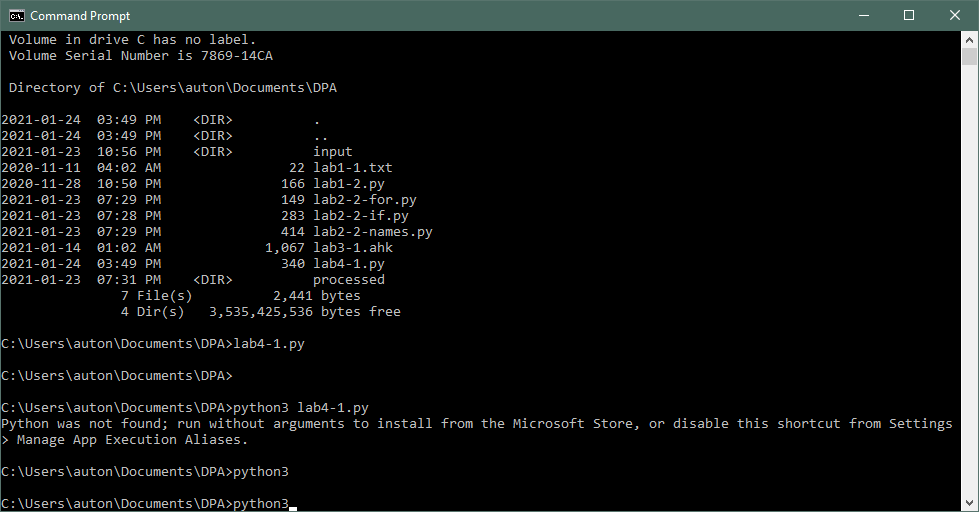
- Type the following and press Enter:
python lab5d.py. You should see some output. If you receive an error about Python not being recognized as internal or external command, follow the instructions here. - Use the up arrow key to see your command again. This time enter some command
line arguments:
python lab5d.py This is a test - Verify that you are seeing these arguments in the script's output. Note: if you have issues, let your instructor know! We will be using the Command Prompt for future labs.
Sys.argv Explained
sys.argv is a list that contains the name of the current file, and then all
arguments that were entered by the user. With command line arguments, we don't
need to rely on prompts to accomplish things. If the user has entered no
arguments, then the length of the list is 1.
Longer lists mean that there are
arguments. Always use an if statement to check the length of the list. If
you try the access, for example, the second element in a list that's only one
element long, you will get an IndexError exception.
5.8 sys.exit
Using command line arguments is a common pattern in computer science, and users appreciate consistency when they are working with the tools that you create. As programmers we should strive to create tools that are intuitive and consistent with the habits and practices that our users are already used to. There is another habit that we should implement: that of the exit code.
Exit codes (again) are similar to return values in our functions. This is an integer that is returned by the program. Normal users don't usually look at the exit code, but often they are used by other programs to see if a command succeeded or not. Your program should be returning an exit code whenever you think it's going to be used as part of a greater workflow. Fortunately, it is very simple to implement.
The convention of exit codes are as follows:
0means success.- any non-zero number indicates an error.
Sometimes programmers can use specific numbers to indicate different types of
errors. For us, however, it will be enough to return a 1 to indicate any type
of error.
import sys

if len(sys.argv) == 1:
    print('Usage: Please enter an argument.')
    sys.exit(1)
else:
    print('Thank you! Program succeeded.')
    sys.exit(0)
Much like the return instruction inside a function, when Python encounters
sys.exit it will terminate the program on that line. This is a good way to
stop running a program if something unexpected has occurred.
5.9 Using help() To Look 'Under The Hood'
When you buy or rent a car, you don't have to know everything that's going on with the engine. As long as the gas pedal and the brake pedal are working, you can get around just fine. But some enthusiasts like to peek 'under the hood' to see what's going on. Let's do that now.
- Open up your Python Interpreter. We won't be creating a script here, just interacting with the Python language. You can do this from the Command Prompt in Windows by typing
python. - Type the following:
mystring = 'hello'. - Type
type(mystring).
str
Python will return the datatype of mystring, very useful when debugging TypeError issues. Let's learn more about strings:
- Type
help(str)
Help on class str in module builtins:

class str(object)
 |  str(object='') -> str
 |  str(bytes_or_buffer[, encoding[, errors]]) -> str
 |
 |  Create a new string object from the given object. If encoding or
 |  errors is specified, then the object must expose a data buffer
 |  that will be decoded using the given encoding and error handler.
 |  Otherwise, returns the result of object.__str__() (if defined)
 |  or repr(object).
 |  encoding defaults to sys.getdefaultencoding().
 |  errors defaults to 'strict'.
 |
 |  Methods defined here:
It's not necessary to understand everything about encoding and buffers, we are more interested in learning about the methods contained in all string objects.
- Use the up/down arrow keys to scroll through the list of methods. The first bunch of methods are called dunders because they start and end with double-underscores. These are special methods used by the Python programming language and we won't discuss these here. Scroll past the dunder methods and you will find useful methods:
 |
 |  upper(self, /)
 |      Return a copy of the string converted to uppercase.
 |
 |  zfill(self, width, /)
 |      Pad a numeric string with zeros on the left, to fill a field of the given width.
 |
 |      The string is never truncated.
.upper() you are already familiar with. Make sure you understand the description. Take a moment to read some of the other method descriptions; often when trying to solve programming puzzles you can save time by seeing if there's already a method for something you're trying to do.
- When you are done, press
qto exit out of the help document and return to the interpreter.
5.10 TASK: Average Calculator
- Create a new file called
lab5e.py. - Your script will be using command line arguments rather than user input.
- The user must be able to enter one or more numbers as command line arguments.
(Use
sys.argv). - If the user doesn't enter any arguments, the script should print a usage
message and stop (Use
sys.exit). - Each command line argument is considered to be an integer.
- If a command line argument is not numeric, print an error message and skip it.
- Keep in mind that the first element of
sys.argvis filename! Make sure you skip this when doing your calculations, otherwise you will get ValueError exceptions.
Sample Output
python lab5e.py
Usage: Enter one or more command line arguments.
python lab5e.py 2 ten 17 39
Number found: 2.
Error: ten is not a number.
Number found: 17.
Number found: 39.
Average for 3 numbers: 19.3
Note:
You will probably want to use VSCode to test your code. To do this with command
line arguments takes one extra step. Open (or create) your launch.json file.
You will see a default configuration like the one below:
{
    "name": "Python: Current File",
    "type": "python",
    "request": "launch",
    "program": "${file}",
    "console": "integratedTerminal"
}
We want to add another configuration that will include some sample arguments. We will use "args" to do this. Copy the default configuration, change the name and add "args" to the end. Please note the commas that I've added, these are needed.
{
    "name": "Python: Current File",
    "type": "python",
    "request": "launch",
    "program": "${file}",
    "console": "integratedTerminal"
},
{
    "name": "Python: Current File with args",
    "type": "python",
    "request": "launch",
    "program": "${file}",
    "console": "integratedTerminal",
    "args": ["2", "ten", "17", "39"]
}
Save the launch.json file and you should be able to select "current file with
args" from the drop-down menu next to the run button.
CHALLENGE TASK: Word Game Improved
- Copy
lab5c.pyand name the copychallenge5.py. - Create a new list of words (can be some other category, not animals!) to choose from.
- Instead of simply telling the user to enter guesses, your program should print an underscore (
_) for each unguessed letter. - When the user enters a correct guess, replace the underscore with the letter.
- There are a couple of ways to prevent newline characters from being printed. You can append characters to a string using
+=and then print the string, or read the docs forprintto discover a way to suppress newline characters.
Sample Output
Your word:
_ _ _ _ _
Enter your guess: e
_ _ _ e _
Enter your guess: m
_ _ m e _
Enter your guess: a
_ a m e _
Enter your guess: camel
You win!
Deliverables
You can use the check script to check your work.
-
lab5a.py -
lab5b.py -
lab5c.py -
lab5d.py -
lab5e.py -
challenge5.py -
lab5-check-output.txt
Glossary
- Iterable
- Append
- Definite/Indefinite Iteration