Lab 6 - Configuring an Apache web server in AWS with a FQDN and SSL
Overview
This week's lab will cover the following:
- Managing Linux packages and updating the system.
- Managing Linux services.
- Modifying Virtual Private Cloud (VPC) Security Groups.
- Implementing an elastic IP in AWS.
- Accessing your Web Server using a browser.
- Using a service to register a domain name
- Generating TLS/SSL certificates with Let's Encrypt & Certbot
- Configuring https on your Apache web server
Managing Linux packages and updating the system
Installing software in Linux requires both an active Internet connection and knowledge of which package management tool to use for your distribution (or distro). Linux software and updates come from special sources hosted on other servers, known as repositories (or repos). All the major Linux distros host their own repos, though anyone can host a repository for a distribution - and many organizations do. Due to the Open Source nature of Linux, certain repos may contain specialized software that is not available in the main repository (such as EPEL - Extra Packages for Enterprise Linux); or they may contain a mirror of the main repo. Accessing these and installing software requires using your Linux distro's command line package management tool. The major ones you will encounter when you use Linux are:
- APT (Aptitude Package Manager): This is used in Debian based Linux distributions such as Ubuntu, Linux Mint, and Kali Linux.
- DNF (Dandified Yum): Which is an update of YUM (Yellowdog Updater, Modified). Both of these operate as a front end for RPM (Red Hat Package Manager). These are used in Red Hat based Linux distros.
- Pacman (Pacman Package Manager): This is used in Arch Linux, as well as a few others.
- Zypper Package Manager: This is used in OpenSUSE, which is popular for use on servers in Europe.
Since you are using Ubuntu, you will be using APT to install software and update the system.
Updating www and installing Apache
Start your www instance in the AWS Learner Lab, and connect to it using SSH. Once you have logged in, issue the following command to update your system.
sudo apt update && sudo apt upgrade
Now that your system is up to date it's time to install Apache, which is the software that will be powering your web server. In Ubuntu, the Apache package is called apache2. Additionally, you can use apt with the -y option to auto assume yes. This can save a little time when you know you want to install the software or updates.
sudo apt -y install apache2
Managing Linux services
Normally the next thing you would want to do is start the service using the systemctl command, then confirm it is running. However, when you installed Apache2 this was automatically done. It's still a good idea to confirm the service is running. The systemctl command always requires elevated privileges, and follows the same format:
- start: Starts the service.
- stop: Stops the service.
- restart: Restarts the service.
- status: Displays information about the current status of the service, such as whether is running or not.
- enable: Configures the service to start automatically on boot.
- disable: Prevents the service from starting automatically on boot.
This isn't a complete list, but it covers all of the things you will require for most system administration tasks. Using what you have just learned, check to see if the apache2 service is running.
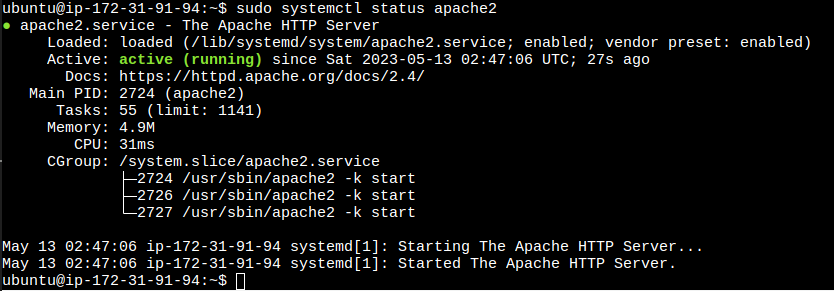
sudo systemctl status apache2
You should see the following output:
Accessing your Apache server through web browser
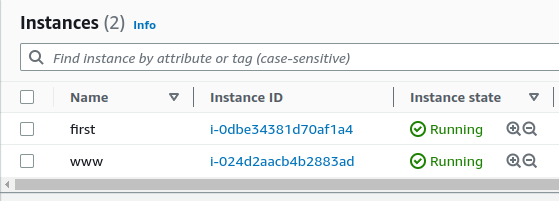
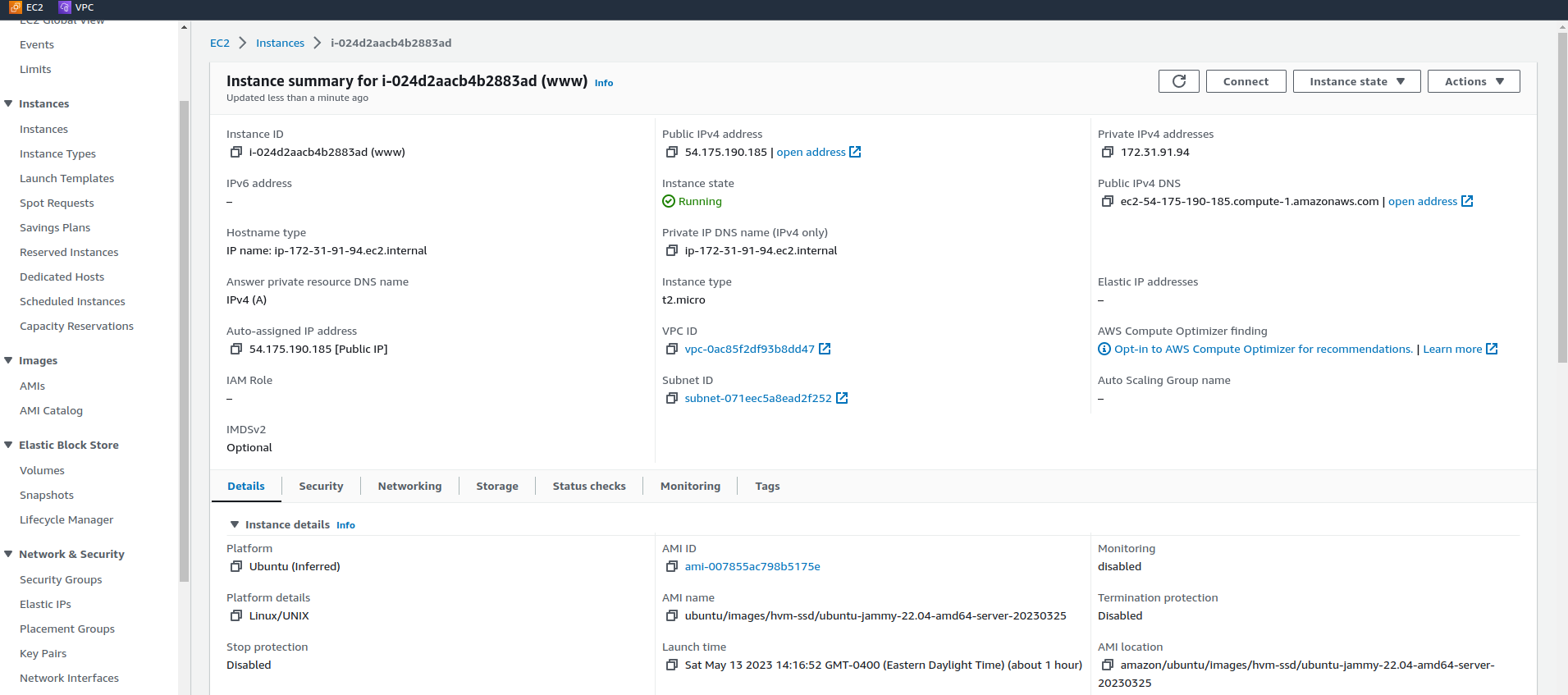
It's time to test to see if everything's working properly. Browse to your instance details in EC2 by clicking on Instances, then the Instance ID next to your www instance (screenshot below).
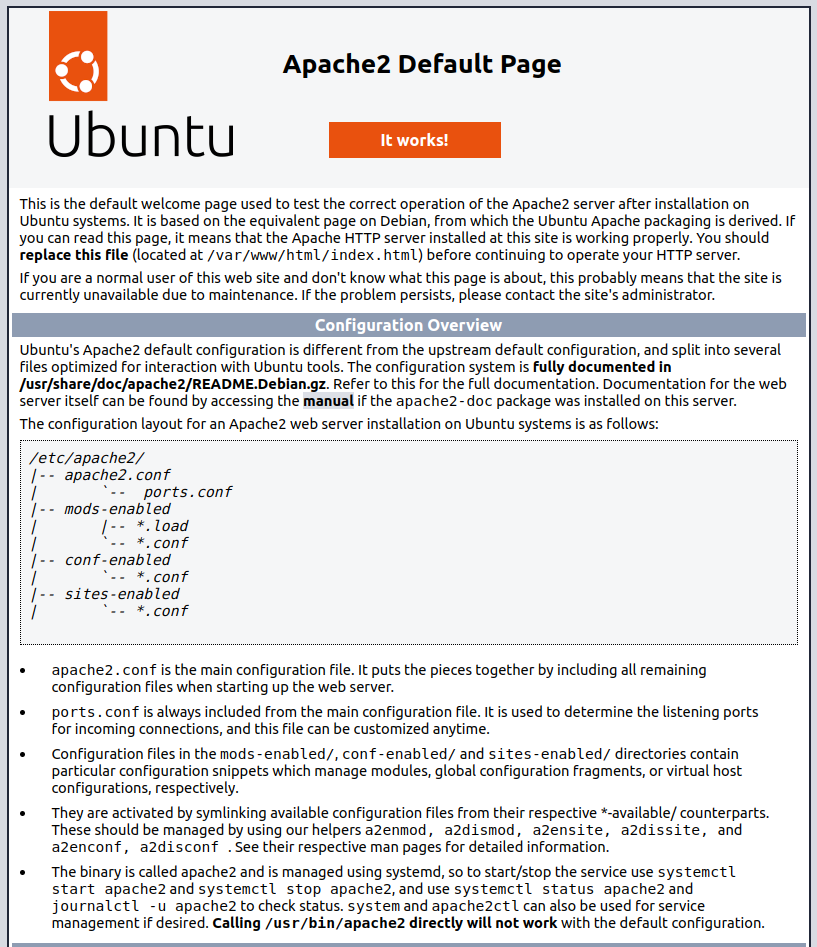
Click open address beside your Public IPv4 address. You should see the default Apache test page (screenshot below). If you do not, edit your url and change https:// to http://. You will learn how to configure https in later in this lab. Accessing your server through http will be fine until then.
Implementing an elastic IP in AWS
When you are configuring network resources such as (routers, network printers or servers) you want them to have a static IP, which doesn't change. Currently our AWS instance pulls a new IP from Amazon's DHCP server every time it boots up. Fortunately, you can configure a static IP through what AWS calls an Elastic IP. These cost money when they're not in use, and will be the first expense item from our free $50 credits this semester that will continue to accrue cost even when your instance is turned off (since your instance will be offline unless you are working on things for this course). To obtain an Elastic IP in EC2, click on Elastic IPs under Network & Security:
Then click Allocate Elastic IP address in the top right corner. Leave all settings as their defaults and click Allocate at the bottom of the screen (screenshot below).
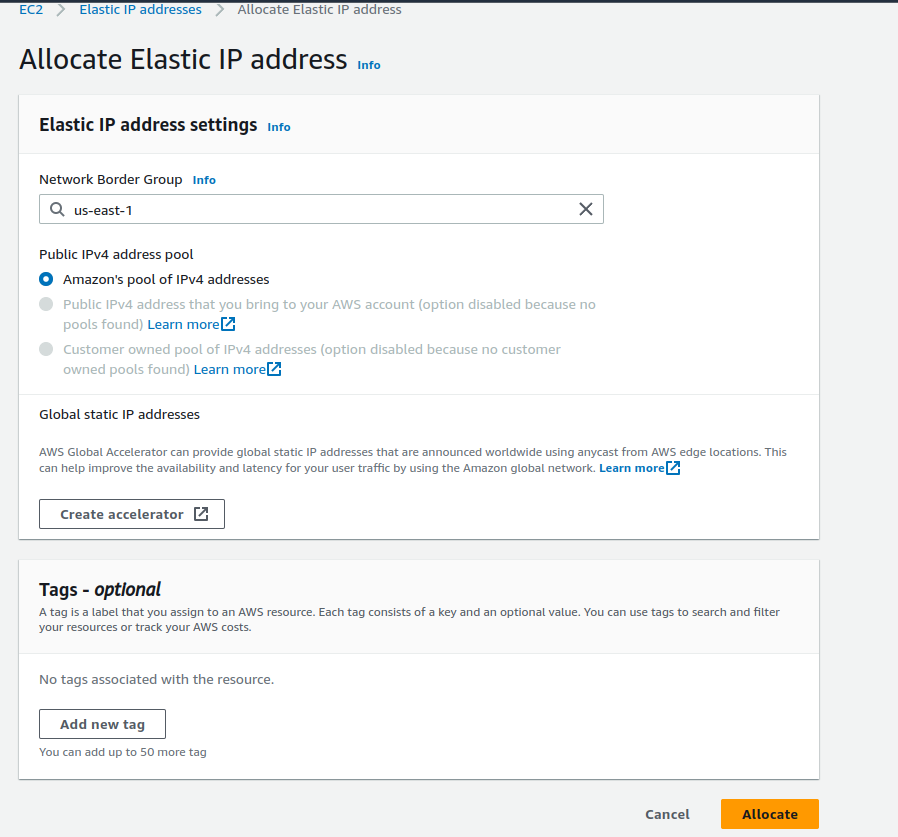
Now you've reserved your Elastic IP. It is yours for as long as you want (which will be the entire semester). However, you need to associate it with the instance you want to access it through (in this case, www). To do that check the box beside your Elastic IP, then click the Actions drop down and click Associate Elastic IP address.
Next, click on the Instance box and select the instance with (www) in the name (screenshot below), and click Associate in the bottom right corner.
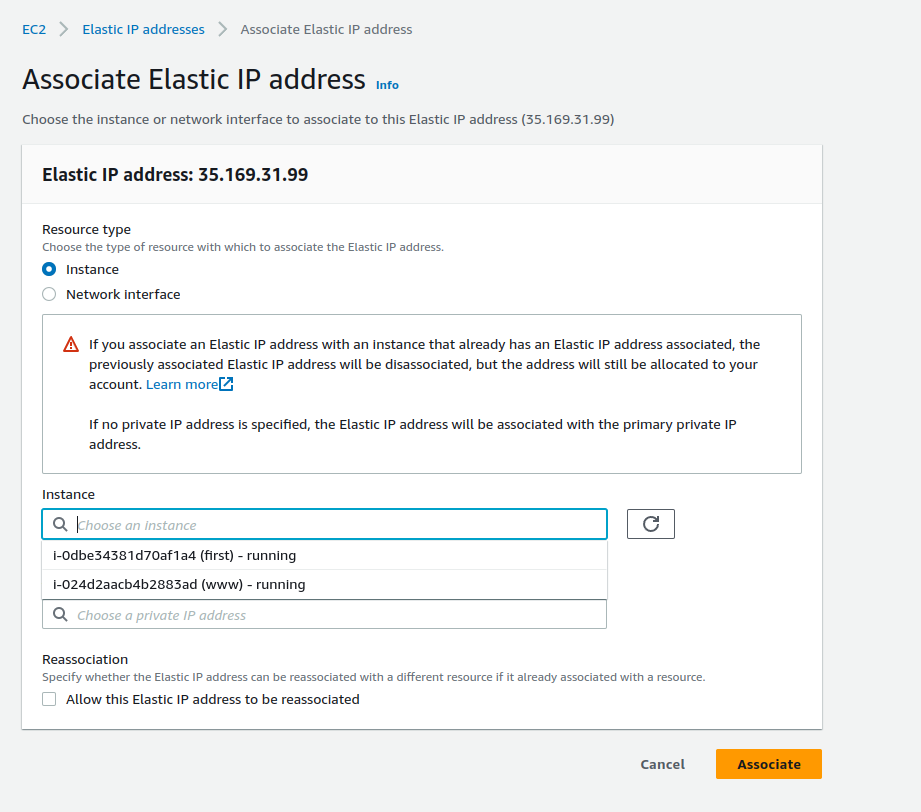
Now you can access your www instance from anywhere by using the same IP address. You should write this IP down somewhere for future use. You will be mapping a domain name to it in the next section.
Accessing your Apache server from a web browser
Open a web browser and either copy/paste, or type out your elastic IP in the address bar (make sure the url is being requested using http and not https) to confirm you can still access your Apache test page.
Registering a domain name
Of course, we don't want people accessing our website to need to use its IP address. We want to them to be able to use an easy to read and remember URL. For this we are going to use DNS service supplied by Seneca.
In the web browser, go to My.Custom.Domain and log in with your Seneca credentials. You will be using this to create an A record and map it to the elastic IP of your www instance. If you do not have access please contact your professor so you can proceed.
Creating an A record
Once you have logged in to My.Custom.Domain. You should see a screen similar to the one below.
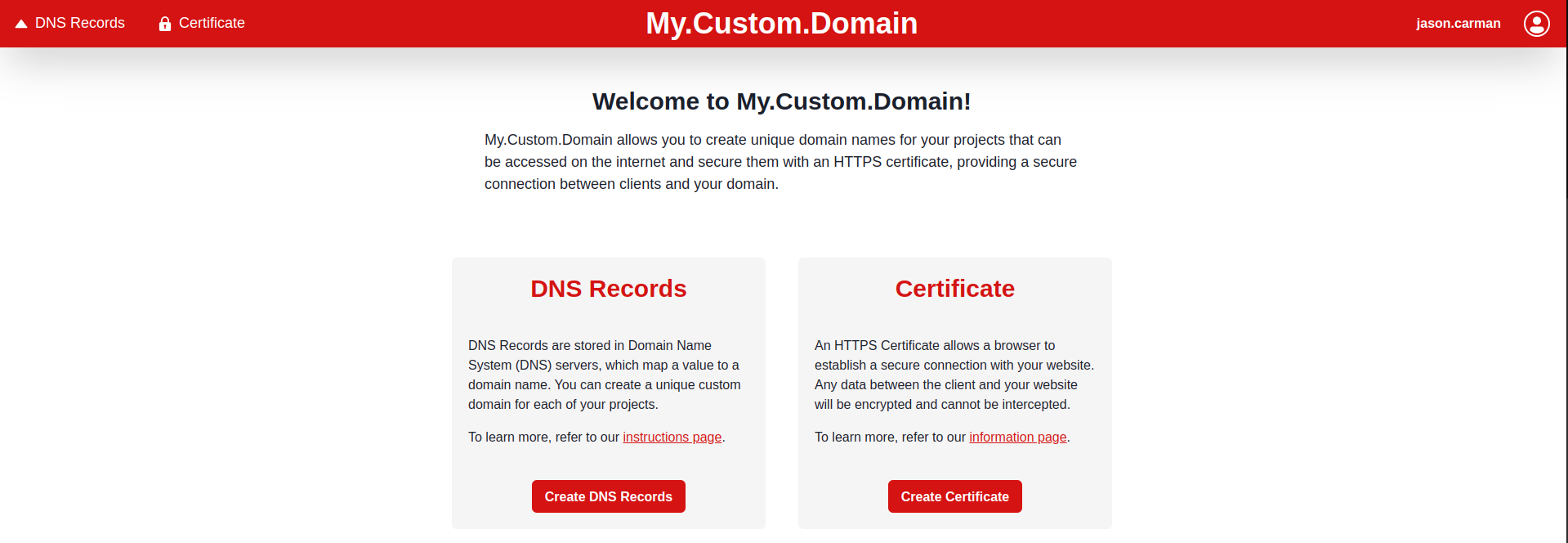
Click Create DNS Records.
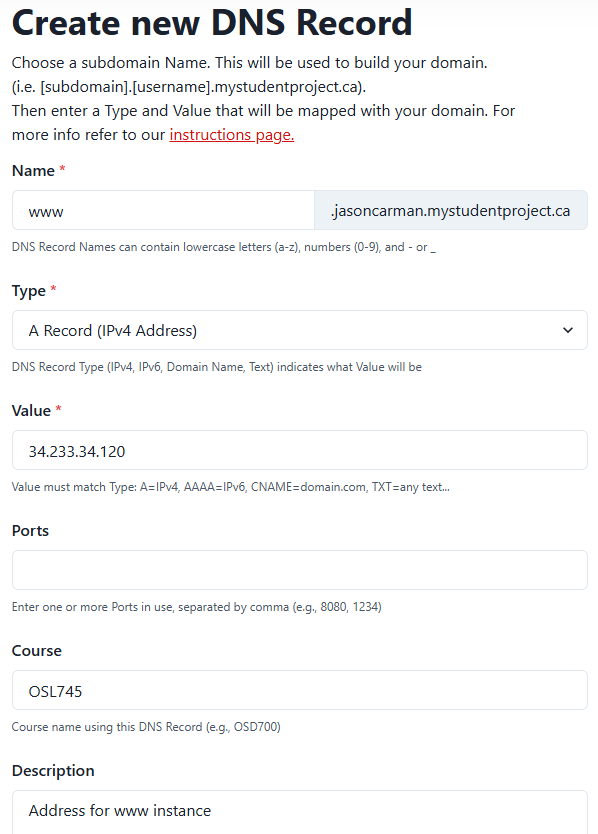
On the following screen, click Create your first DNS Record!, and fill in the following information (see the following screenshot for an example)
- Name: www
- Type: A Record (IPv4 Address)
- Value: your elastic IP
- Course: OPS345
- Description: Address record for www instance.
Click Create.
Testing Your DNS configuration
- Go to "Instances" in EC2 and make sure your www instance is running.
- Next, login to your first instance and issue the following commands. Note the output of each. Substitute your username in the provided commands.
nslookup www.yourusername.mystudentproject.ca
and
dig www.yourusername.mystudentproject.ca
- Access dig via the Google Admin ToolBox and enter the value www.yourusername.mystudentproject.ca into the Name field (make sure the record type is set to A). You should see output similar to the following:
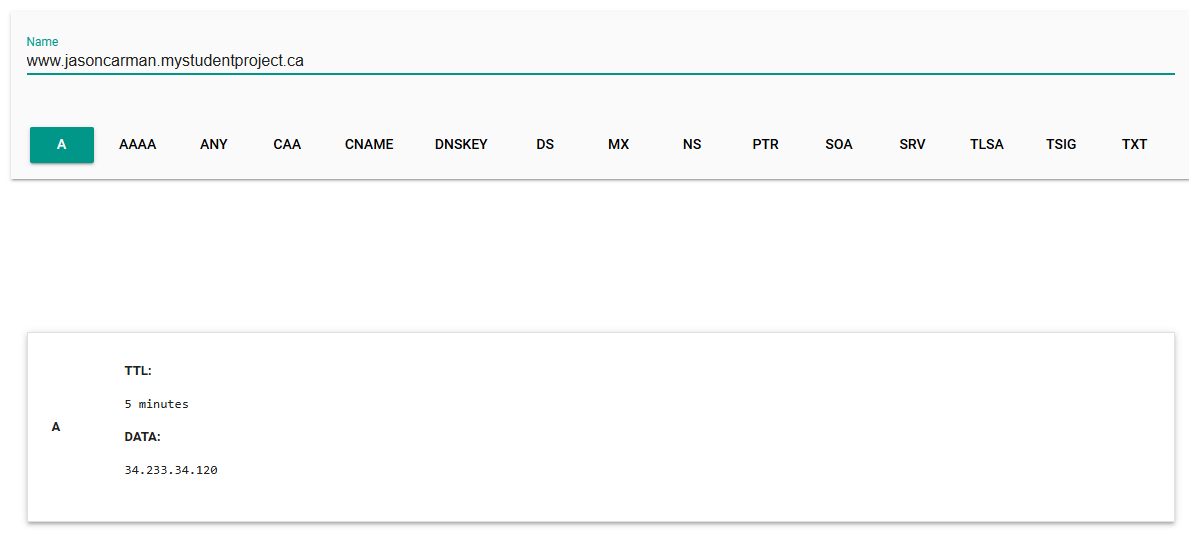
- Provided all of the above displayed the correct output, open a web browser and type www.yourusername.mystudentproject.ca (replace your username) in the URL bar of a web browser. This could be on your PC, or any device. You should see your website! If you don't, double check and make sure you see http:// and not https://.
Make sure you see the correct output from the previous commands indicating your DNS is working before proceeding to the next step.
Note: You can now login via SSH (from the command line) using your FQDN!
Use the command:
ssh -i ops345.pem ubuntu@www.username.mystudentproject.ca
Preparing your system to generate and install an SSL certificate
Now our website can be accessed by an easily human-readable URL. However we still have a problem. Our connection is not as secure as it could be because we are still using HTTP instead of HTTPS. Let's fix that now.
Login to your www instance. You are going to install Certbot, which will automate configuring HTTPS using Let's Encrypt.
Installing Certbot
First, check to see if it is available by issuing the following command.
sudo apt search certbot
You should see the following output.
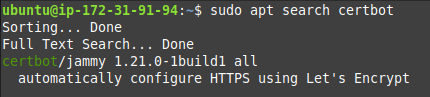
Once you have confirmed it is available, install it.
sudo apt -y install certbot python3-certbot-apache
Configuring an Apache Virtual Host
Create and edit a file for your virtual host configuration. You can use either vim or nano. Replace wwwusernamemystudentprojectca with your domain name, with the www and top level domain, but without the dots(.). This will allow Certbot to find the correct VirtualHost block and update it.
sudo vim /etc/apache2/sites-available/wwwusernamemystudentprojectca.conf
Enter the following text (again, replacing the username with yours).
ServerName www.jasoncarman.mystudentproject.ca
Save your file and exit.
Testing and Reloading the Apache configuration
Enter the following command to test your Apache configuration.
sudo apache2ctl configtest
You should see a message indicating Syntax OK. If you don't, double check your file name and contents for errors. Sample output follows.

Now you can reload apache2 using systemctl.
sudo systemctl reload apache2
If you are met with no message, you are good to go.
Generating an SSL certificate using Let's Encrypt and Certbot
Now you are ready to generate your SSL certificate using Certbot. You are going to configure Apache to reconfigure and reload the configuration whenever necessary. This way you do not need to worry about updating your SSL certificate every 90 days, which is when certificates issued through Let's Encrypt and Certbot expire. Issue the following command:
sudo certbot --apache
At the email address prompt, enter your Seneca Polytechnic issued email.

Accept the terms of service. Answer as you wish for sharing your email, then enter your domain name. See the following example.
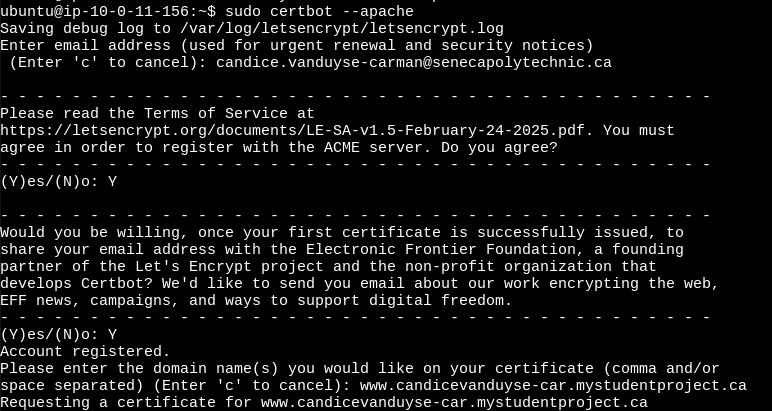
VERY IMPORTANT Update your Wordpress Website SG security group rules to allow incoming HTTPS traffic from the anywhere IP: 0.0.0.0/0 AWS will not allow connections to your newly secured web server without this!
Testing your configuration
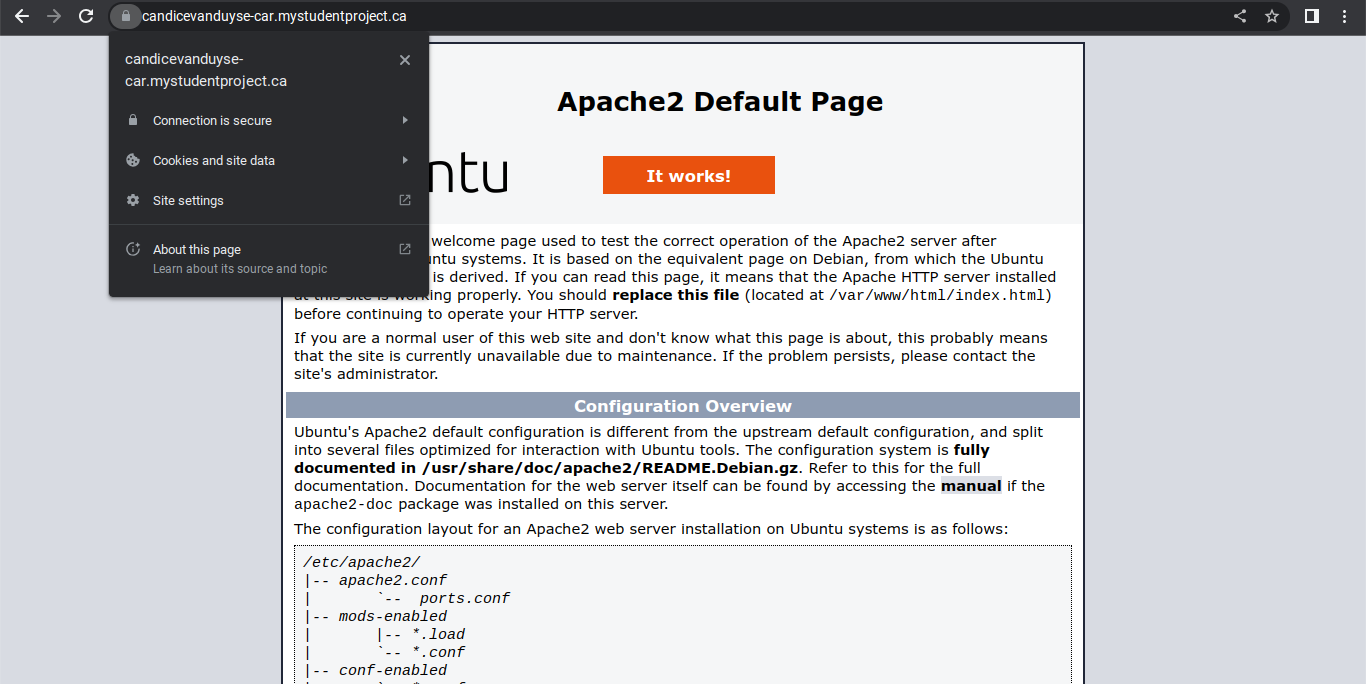
Open a web browser try to access your Apache test page using HTTPS. It should work! Your screen should look similar to the following.
Lab 6 Sign-Off
Take screenshots showing the following:
- Your Elastic IP in EC2
- Accessing your Apache2 Ubuntu Default Page through a web browser using https and showing your fully qualified domain name (FQDN).
- Be sure to show that it is using HTTPS. Depending on your browser, this can usually be done by clicking the button to the left of the URL and looking for a "Connection is secure" message or something along those lines.
Exploration Questions
- What package manager does Ubuntu use?
- How do you find the current status of the apache2 service?
- What is an Elastic IP?
- What is the difference between HTTP and HTTPS?
- What port did you have to allow inbound in the Wordpress Website SG security group?
- What service (command) did you use to generate your TLS/SSL certificate?
- What is certbot?