Lab 3: Virtual Networks
Lab Preparation
Purpose and Objectives of Lab 3
In this lab, you will learn the basics of networking by using your Virtual Machines. You will first set up a virtual network among those machines. In addition, you will learn to set up local hostname resolution (/etc/hosts), service/port number resolution for troubleshooting purposes, and use shell scripts with arrays to store network configuration data.
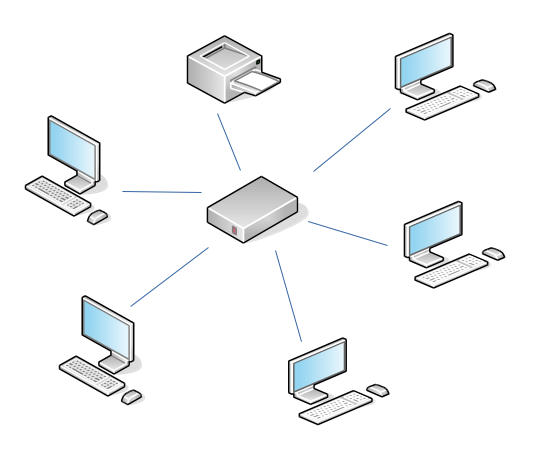
Setting up networks is an essential operation for a system administrator. Maintaining network connectivity and securing the network are also essential operations. In this lab, we will configure a private virtual network using static IP addresses. We will learn how to setup a DHCP network in lab 8.
Main Objectives
- Configure a private virtual network for your VMs and your ubuhost machine
- Configure network interfaces for your Virtual Machines using both graphical and command-line utilities.
- Use local hostname resolution to resolve hostnames to the corresponding IP addresses.
- Use common networking utilities to associate network services with port numbers for troubleshooting purposes.
Minimum Required Materials
- Solid State Drive
- USB key (for backups)
- Lab Log Book
Linux Command Reference
Networking Utilities
Networking Configuration Files
Additional Utilities
Investigation 1: Configuring A Virtual Network
For the remainder of this course, we will focus on configuring our VM's to communicate across a (Virtual) network. This lab will focus on setting up a virtual network, connecting our VMs and ubuhost machine to the network, and configuring local hostname resolution to make it more convenient to use, troubleshoot, and protect. Lab 4 will focus on configuring SSH and making access to the virtual network more secure.
Part 1: Configuring a Private Network (Via Virtual Machine Manager)
If we are going to setup a private virtual network, there are a number of steps to perform: First, define a new private network in the Virtual Machine Manager application; and second, configure each of our VMs to connect to this new private network. In Part 1, we will be perform the first operation. In part 2, we will be performing the second operation for all VMS (graphical and command-line).
Before configuring our network, we want to turn off dynamic network configuration for our Virtual Machines by turning off the "default" virtual network. We will then define our private network.
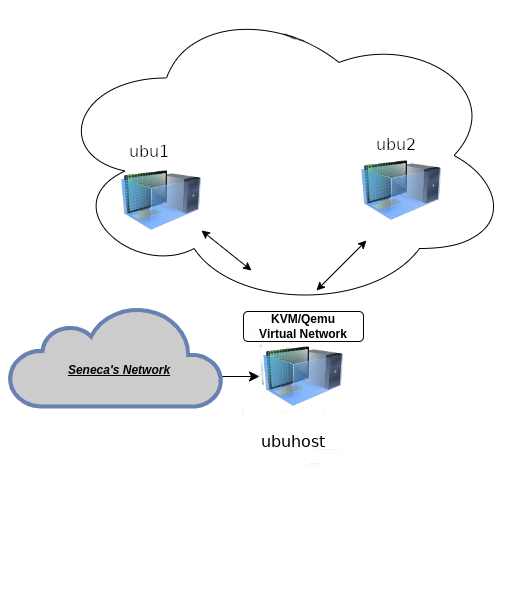
This diagram shows the current network configuration of your ubuhost machine in relation to your Virtual Machines. In this section, you will be learning to change the default network settings for both your ubuhost machine and VMs to belong to a virtual network using fixed IP Addresses.
Perform the following steps:
- Launch your ubuhost and start the Virtual Machine Manager.
- Make certain that the ubu1, and ubu2 virtual machines are powered off.
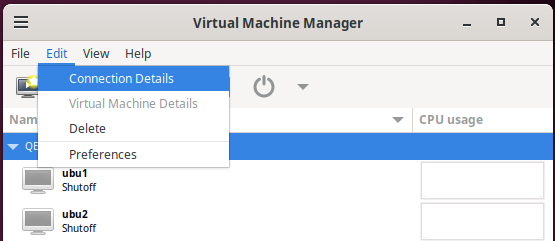
- In the Virtual Machine Manager dialog box, select Edit-> Connection Details.
- In the Connection Details dialog box, select the Virtual Networks tab
- Click to de-select the Autostart (on boot) check-box options and click the Apply button.
- Stop the default network by clicking on the stop button at the bottom left-side of the dialog box.
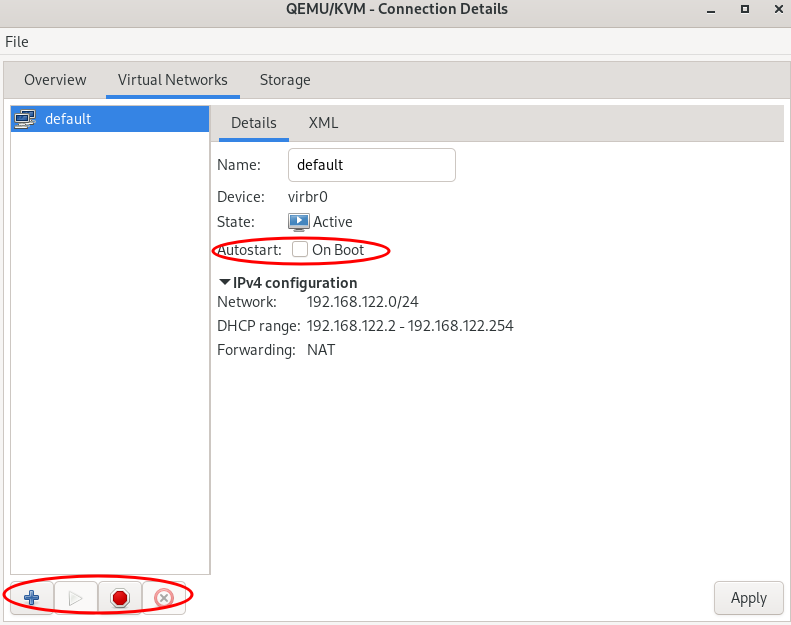
- Click the add button (the button resembles a "plus sign") to add a new network configuration.
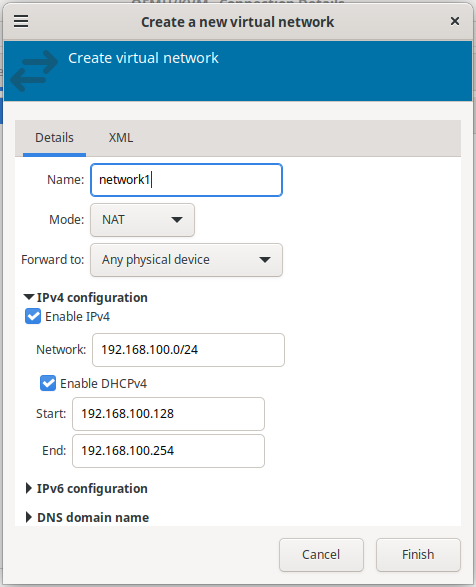
- Type the network name called: network1.
- Click on IPv4 configuration, change the Network: address to 192.168.100.0/24
- Leave the Enable DHCPv4 checkbox checked and click the Finish button.
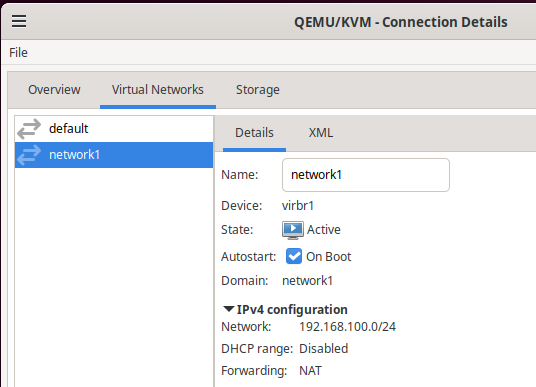
- Select network1 and make sure the State: is Active and Autostart: On Boot is enabled.
- Close the Connection Details window and open a terminal on ubuhost
- Confirm that ubuhost is connected to network1 and gather network information with the following commands:
# Show network interfaces including host IPv4 address
ip address

# Show IPv4 routes including default gateway
ip route
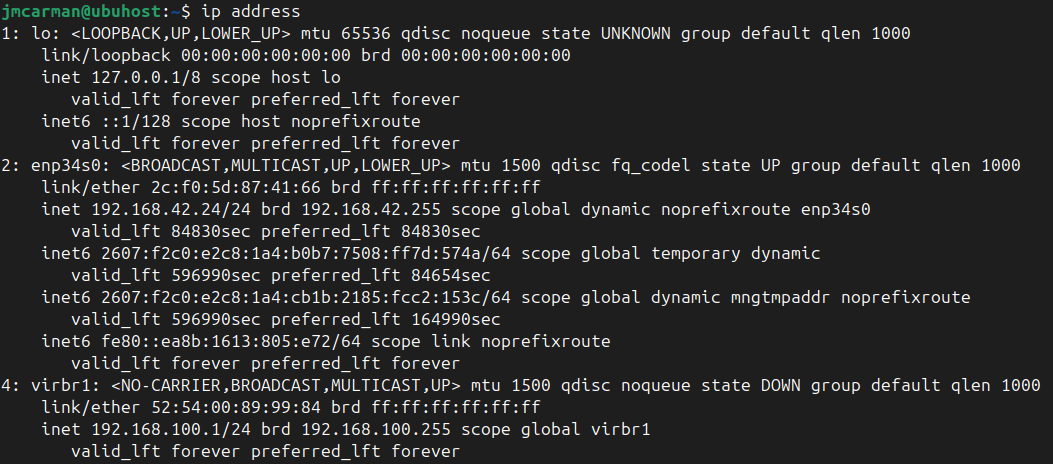
You can see that ubuhost has 3 network interfaces:
- lo The "loopback" interface with the reserved loopback IPv4 address of 127.0.0.1/8
- enp34s0 (The name may be slightly different)
- virbr1 The interface connected to network1 with the IPv4 address of 192.168.100.1/24
- Make a note of the IPv4 address for virbr1 . Note it is the first usable IP in the subnet.

You can see that ubuhost is configured with a default gateway (default route) that is the IPv4 address of either the lab PC or your laptop.
ubuhost is also connected to 2 networks. The physical network in the lab or your laptop, and the KVM/Qemu virtual network network1 via the interface virbr1
We will now reconfigure each of our VMs to use our new virtual network network1
- Start with the ubu1 VM. Double-click on your ubu1 VM, but instead of starting the VM, click on the View menu, and select: Details
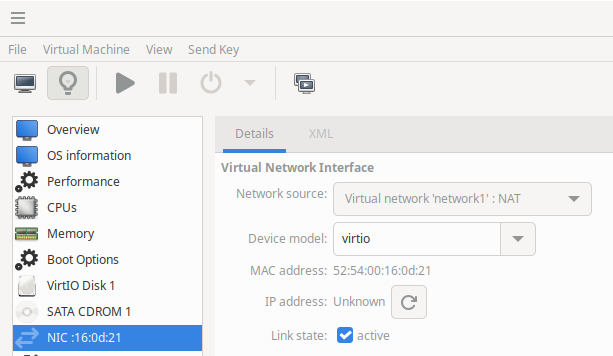
- In the left pane of the Virtual Machine window, select NIC: and note that this NIC is connected to the Network source: 'default'
- Change it to Virtual Network network1: NAT (i.e. the network that you just created) and click the Apply button.
Part 2: Configure the static network connection using command line tools
The ubu1 and ubu2 VMs are text-based only systems, we cannot use a graphical tool to configure the connection to our network. We will learn how to perform this task by editing text files and command-line tools.
Although you can use the ip command to temporarily create a static IP address connection to a network, you need to add the network settings to the /etc/netplan/99_config.yaml file to automatically connect to the network upon system boot-up. Note: This file is in yaml (YAML ain't markup language), which has it's own syntax. It's designed to be easy to read and understand. It makes use of whitespace (like Python). If your yaml files are not properly indented, they will not work.
Perform the following steps on ubu1:
- Click on View and select Console.
- Start your ubu1 VM, login, and use ip address show to check the current address.
- The
ipcommand can be used to display information about the interfaces, addresses, and routes configured in the system. It can also be used to control those configurations. Try the following commands on ubu1:
# Display links (interfaces on a network) and the MAC address of those interfdaces
ip link
ip -brief link

# Display configured IP addresses assigned to interfaces
ip address
ip -brief address

# Display routes and default gateway
ip route
- At this time you should will see the default routes and the IP obtained by DHCP through your virtual network. However, these are servers. Servers should have static IPs so you can reliably locate them on the network (or map FQDNs to them, which we will do later in the course).
- To add a static address and default gateway to the interface use the following commands:
# Add a static IPv4 address (you may have a different interface name)
sudo ip address add 192.168.100.11/24 dev enp1s0

# Make an interface down/up
ip link set enp1s0 down
ip link set enp1s0 up
- Confirm the effect of these commands.
- Make sure your link is in an UP state with the static address and default gateway.

- Confirm your connection by pinging ubuhost's ip address.
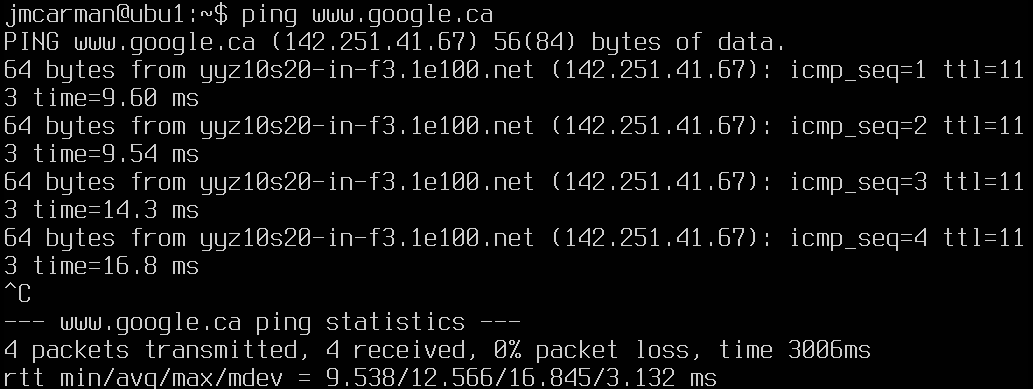
- Test the connection to the Internet by pinging www.google.ca (ctrl + C to cancel this once you see it's success or failure a few times).
- If everything is working, reboot ubu1
- Login to ubu1 and display your ip configuration with
ip - All of the settings have been lost. They need to be made persistent by editing the /etc/netplan/99_config.yaml file
- Edit the file and make the following changes to the "primary network interface" (Your interface name may be different)
network:
  version: 2
  renderer: networkd
  ethernets:
    enp1s0:
      addresses:
        - 192.168.100.11/24
      routes:
        - to: default
          via: 192.168.100.1
      nameservers:
        addresses: [192.168.100.1]
- Issue the following command to apply your configuration. Note: You should receive an error about the file permissions for /etc/netplan/99_config.yaml.
sudo netplan apply
- Use chmod to make 99_config.yaml read and writable only by the user.
sudo chmod 600 /etc/netplan/99_config.yaml
- Reissue the command to apply your configuration.
- Issue a linux command to display your IP configuration.
- Test your connection by pinging www.google.ca.
- If the test is successful reboot ubu1 and test again.
- Now configure your ubu2 VM for a persistent static network connection as well using the IPv4 address of 192.168.100.12. Don't forget to:
- configure the VM to connect to network1
- configure the /etc/netplan/99_config.yaml file (don't forget about the file permissions)
- test connectivity after a reboot.
You should now be able to ping both of your VM's by address and any named host on the Internet from each of your VM's
Answer INVESTIGATION 1 observations / questions in your lab log book.
Investigation 2: Managing Your New Network
Creating private networks are an important task, but a system administrator also needs to manage the network to make it convenient to use, and troubleshoot network connectivity problems.
This investigation will expose you to useful "tools" and utilities to help accomplish this task. Future labs require that you understand these concepts, as you will expand on them. You should have a good general understanding how to use troubleshooting utilities (like ss).
Part 1: Using /etc/hosts File for Local Hostname Resolution
It is possible to connect to other hosts on the Internet by their domain name using DNS to resolve names to addresses.
However your VM's are not registered as hosts with a DNS server so are only accessible by IP address. It can be hard to try to remember more than a couple of IP addresses. In this section, we will setup your network to use local hostname resolution so that we can connect by hostname.
Hosts files vs. the Domain Name System
On large public networks like the Internet or even large private networks we use a network service called Domain Name System (DNS) to resolve the human friendly hostnames like www.debian.org to the numeric addresses used by the IP protocol. On smaller networks we can use the /etc/hosts on each system to resolve names to addresses. Local hostname resolution using /etc/hosts was the way to map hostnames to IP addresses for ARPANET (the predecessor to the Internet) prior to the development and release of DNS (the Domain Name System) in 1983/84. We will be learning about DNS in Lab 8.
Perform the following steps:
- Complete this investigation on both of your VMs and the ubuhost machine.
- Use the
hostnameandipcommands on your ubuhost machine and both of your VM's to gather the information needed to configure the /etc/hosts file on all of your Linux systems. - Edit the /etc/hosts file for ubuhost, and the ubu1, and ubu2 VMs. Add the following contents to the /etc/hosts file (below the mappings for 127.0.0.1, which is the loopback IP). Note: You may need to correct the loopback entry of 127.0.1.1 on ubu2 to map to ubu2. This is a holdover from when you cloned the VM in lab 2.
192.168.100.1 ubuhost
192.168.100.11 ubu1
192.168.100.12 ubu2
Verify that you can now ping all of your VMs from all of your VMs by the hostname instead of the IP address.
Part 2: Network Connectivity and Network Service Troubleshooting Utilities
Troubleshooting network problems is an extremely important and frequent task for a Linux/Unix system administrator. Since network services (such as file-server, print-servers, web-servers, and email-servers) depend on network connectivity, as Linux/Unix sysadmin must be able to quickly and effectively pin-point sources of network problems in order to resolve them.
Network service problems may not be entirely related to a "broken" network connection, but a service that is not running or not running correctly. The following table lists the most common listing of utilities to assist with detection of network connectivity or network service problems to help correct the problem.
Common Network Troubleshooting Tools
| Purpose | Command(s) |
|---|---|
| Network Connectivity | ping, arp, ip (replaces deprecated ifconfig) |
| Network Service Status | ss (replaces deprecated netstat) |
Read the first four sections of this blogpost about using the arp command to examine the arp cache.
Perform the following steps:
- Switch to your ubuhost machine and start a sudo shell.
- Install the
net-toolspackage. - Issue the ping command to test connectivity to your ubu1, and ubu2 VMs.
- Examine the contents of the ARP cache by using the command:
arpWhat is the purpose of ARP? - Check the contents of the cache again by using the command:
arp -nWhat was the difference in output? - How did the system resolve the IP address to hostname?
An important task of any System Administrator is to monitor and control the type of connections that can be received by your host. Network applications that connect to (or talk to), Servers/Daemons/Services over a TCP/IP network send requests to a particular TCP or UDP port that is open and accepting requests.
- From ubuhost open 2 more terminals, use the
sshcommand to connect to ubu1 and ubu2 - Switch to your ubu1 VM, and use
sshto connect to ubuhost - Switch to your ubu2 VM, and use
sshto connect to ubuhost - Switch back to ubuhost
On ubuhost, ubu1 and ubu2, issue the following commands and observe the output:
# Show all active UDP ports
ss -au

# Show all active TCP ports
ss -at

# Show both
ss -aut

# Show all active TCP ports and the process that opened it
ss -atp

# Show all active TCP ports numerically
ss -atn

# Show all incoming ssh connections
ss -t src :22

# Show all outgoing ssh connections
ss -t dst :22
- TCP is a connection oriented protocol that uses a 3-way handshake to establish a connection. Those ports that show a state of LISTEN are waiting for connection requests to a particular service. For example you should see the ssh service in a LISTEN state as it is waiting for connections.
- UDP is a connectionless protocol that relies on application layer protocols to handle reliability of traffic.
- From ubu2 exit your ssh connection into ubuhost and rerun the command on the
ss -at. Instead of ESTABLISHED it should now show a state of TIME-WAIT. Indicating that the TCP connection is being closed. - On your debhost, try the command:
ss -atnHow is this output different? Without the -n option ss attempts to resolve IP addresses to host names (using /etc/hosts) and port numbers to service names (using /etc/services) - Examine the /etc/services file and find which ports are used for the services: ssh, sftp, http
Answer INVESTIGATION 2 observations / questions in your lab log book.
Investigation 3: Using a bash script to test connectivity to all hosts on the local network
In this investigation you will use a bash script that will ping the hosts on our local network to test if they are connected to the network. The script has already been provided for you.
- Clone the GitHub repository (on your ubuhost) that contains the script.
git clone git@github.com:OSL745/pingtest
- Change to the pingtest directory.
cd ~/pingtest
- View the script (using
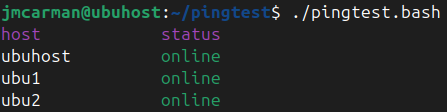
cator opening it in a text editor. Do not make any changes). Try to predict exactly what the script will do. - Try the script with both your VMs (ubu1 and ubu2) running.
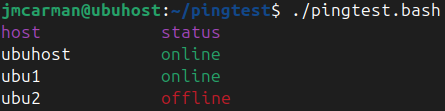
- Shutdown ubu2. ubu1 should be running. Run the script again. You should see the following output.
Lab 3 Sign-Off (Show Instructor)
Follow the submission instructions that your Professor provides.
Backup ALL of your VMs!
If you have successfully completed this lab, make a new backup of all of your virtual machines onto your USB Key.
Perform the Following Steps:
- On your ubuhost issue the commands and show your professor the output:
- Successfully run the pingtest script on your ubuhost
cat /etc/hostson ubuhost, ubu1 and ubu2
Exploration Questions
- What is a port?
- What command will set your IP configuration to 192.168.55.22/24 ?
- What is the difference between UDP and TCP?
- What port number is used for DHCP servers?
- What is the function of the file
/etc/hosts? - What tool is used to show you a list of current TCP connections?
- How to you set persistent static IP addresses in Ubuntu?